
Highlight points on my map using display rules (tags, zoom level, point size)
Why set up point display rules?
When a map contains many points of interest, it is important to maintain clear and useful readability for the user. Display rules allow you to control POI visibility: some display only from a certain zoom level, others appear as a priority.
Result: a more readable map that highlights essential information without overwhelming the user.
How does it work?
You have the ability to create rules to organize the display of points on your map, based on associated tags and the map's zoom level:
- Show / hide points at different zoom levels
- Ex: allows you to display a certain type of points at a first zoom level, then display others as you zoom in on your map.

- Show / highlight points by adjusting their size
- Ex: allows you to display points with the associated tag at a size times larger than others to better locate them on the map.

📌 Note:
This operation requires having properly associated tags to your points beforehand, from your point list.
🏷️ Edit display rules
- Access your map
- Go to the map's "Formatting" menu
- Click on "Edit display rules", in "Point display rules", at the bottom of the page

A new window opens to edit the display rules:
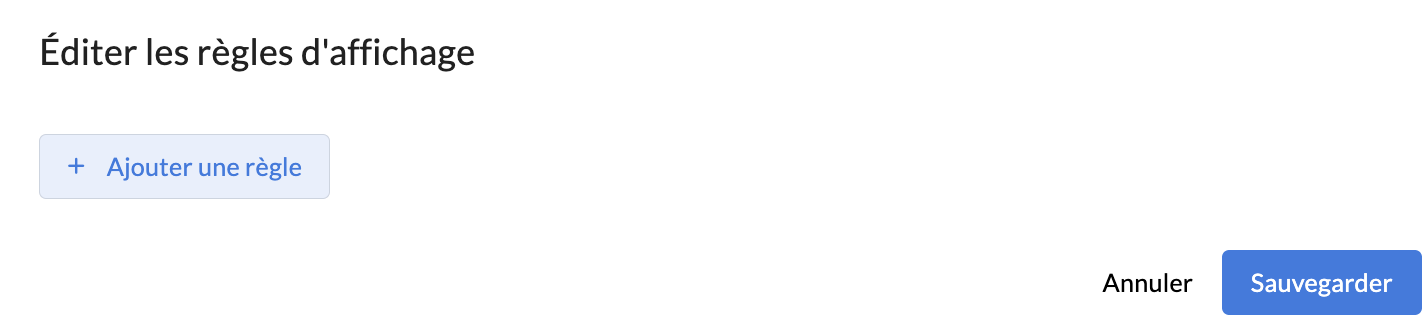
- Click on "Add a rule"
- Configure your display rules
- Rule type:
- Search: allows you to filter point display according to their tags and based on the map zoom.
- Size: allows you to modify the size of points for selected tags.
- Tags: enter the tag(s) you want to add to this rule.

- Display your points at different zoom levels on the map:
- Rule type: select "Search"
- Filtering logic: this parameter is useful if you have indicated multiple tags in your rule.
- AND: the point will display on the map if it has all the associated tags.
- OR: the point will display if it has at least one of the associated tags.
- Minimum zoom: indicate the smallest zoom level at which points should display (by default, it is set to 2).
- Maximum zoom: indicate the largest zoom level at which points should display (by default, it is set to 18).
👉 Example: if I configure the tags "culture" and "sport" with an "AND" filtering logic and a minimum zoom 10 / maximum 14, only my points with both "culture" AND "sport" tags will display on my map from zoom 10 to zoom 14. Before and after that, all my points will display.
With the "OR" filter, all my points with either the "culture" tag or the "sport" tag will display between zooms 10 and 14.

- Display your points at different sizes on the map:
- Rule type: select "Size"
- Minimum zoom: indicate the smallest zoom level at which points should display (by default, it is set to 2).
- Maximum zoom: indicate the largest zoom level at which points should display (by default, it is set to 18).
- Size: indicate the size of the point on the map if it has one of the associated tags and the map respects the configured zoom level (by default, it is set to 1).
👉 Example: if I configure the "sport" tag with a minimum zoom 10 / maximum 18 and a size 2, all my points with the "sport" tag will display on my map at a larger size than others from zoom 10 onwards.

- Click on "Save"
➕ Combine display rules
Rules can be cumulative if you add several, whether for multiple rules of the same type (search and search) or of different types (search and size).
⚠️ Configuration criteria to respect:
- Zoom levels must not overlap between multiple "Search" type rules, otherwise points will not appear on the map:
- If rule 1 is configured with minimum zoom 2 / maximum 18 and rule 2 with minimum zoom 10 / maximum 18 (the 2 rules then share the same zoom levels between 10 and 18) = no more points will display from zoom 10 onwards.
- If rule 1 is configured with minimum zoom 2 / maximum 10 and rule 2 with minimum zoom 10 / maximum 18 = points meeting the criteria of rule 2 will display properly.
- If you want the points from rule 1 to remain visible when rule 2 is applied, the points must have the tags from both rule 1 and rule 2.
👉 Example 1:
If I configure 2 rules:
- Rule 1: "Search", with the "culture" tag, an "AND" or "OR" filtering logic and a minimum zoom 12 / maximum 14
- Rule 2: "Search", with the "sport" tag, an "AND" or "OR" filtering logic and a minimum zoom 14 / maximum 16

Then:
- At zoom levels 12 to 14, only points with the "culture" tag will display.
- Then from zoom 14, points with the "sport" tag will appear in turn but those with the "culture" tag will disappear.
- EXCEPT if points with the "sport" tag also have the "culture" tag, then these points will be displayed between zooms 12 and 16.

👉 Example 2:
If I configure 2 rules:
- "Search": with the "culture" and "sport" tags, an "AND" filtering logic and a minimum zoom 12 / maximum 14
- "Size": with the "sport" tag, a point size of 2 and a minimum zoom 12 / maximum 14

Then:
- From zoom level 12 to 14, points with the "culture" and "sport" tags will display on the map, and those with the "sport" tag will have a size 2 times larger on the map.
