
Add an image carousel to a point
Wemap Pro allows you to customize your points by adding one or more images, visible in the detailed view.
When you decide to add multiple visuals to illustrate a point, you have the option to display them as a carousel, ideal for enriching and highlighting your content on the map.

This operation can be performed:
- From Wemap Pro, in the case of a list of points created via Excel import or a point created manually
- From the data source (Excel file, Google Sheets, JSON...), by entering the URLs of your images
🛠️ Prerequisites:
If the operation is performed from the data source, your images must be hosted in order to use their URL on Wemap Pro.
NB: if your images are hosted on Google Drive and you want to use a Google Sheets, you can convert the URL to a direct link.
🖼️ Add an image carousel to a point
- If your point was created manually
- Access your point from "Manage" > "My points" or "Manage" > "My lists"
- Click on "Add images" in the "Carousel" section to add them to your point or click on the trash icon to delete them

- If your point was created via Excel import or a Google Sheets / Microsoft Excel connector
-
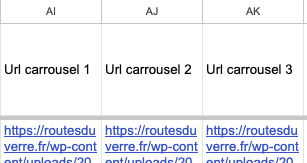
Add a dedicated column for each image in your file
Ex: "Carousel URL 1", "Carousel URL 2", "Carousel URL 3"...
-
- When performing the mapping when creating the list, move the corresponding value to "Extra media"
-
You can then view and scroll through the images in your carousel
- If your point was created via the JSON connector
-
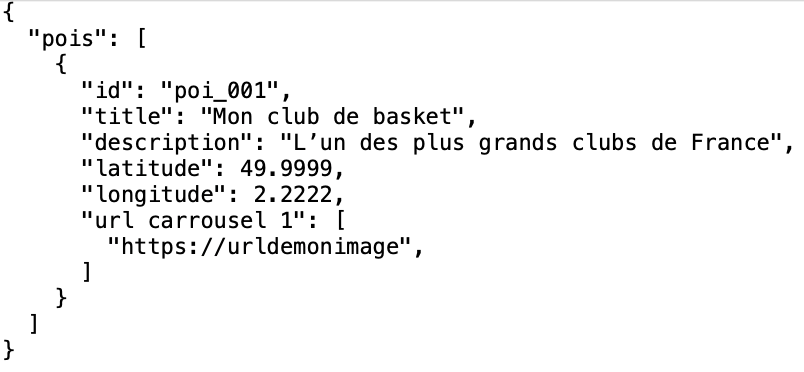
The image URL must appear in the properties of your JSON file for each of the relevant points.
Ex: add a "carousel url 1", "carousel url 2"... field in the properties
- When performing the mapping when creating the list, move the corresponding value to "Extra media"
- You can then view and scroll through the images in your carousel
-
⚙️ Modify a point's image carousel
- If your point was created manually
Follow the same procedure as for adding a carousel to a manually created point
- If your point was created via Excel file import
You can add or remove images from the carousel from the "Table" view in Wemap Pro:
- Access your list
- Click on "+" in the "Carousel" column
- Import the images from your computer to add them to your point or click on the trash icon to delete them.

- If your point was created via a connector (Google Sheets, Microsoft Excel, JSON...)
You must make the modification directly from the source file (see previous paragraph).