
Use step-by-step guidance / augmented reality navigation
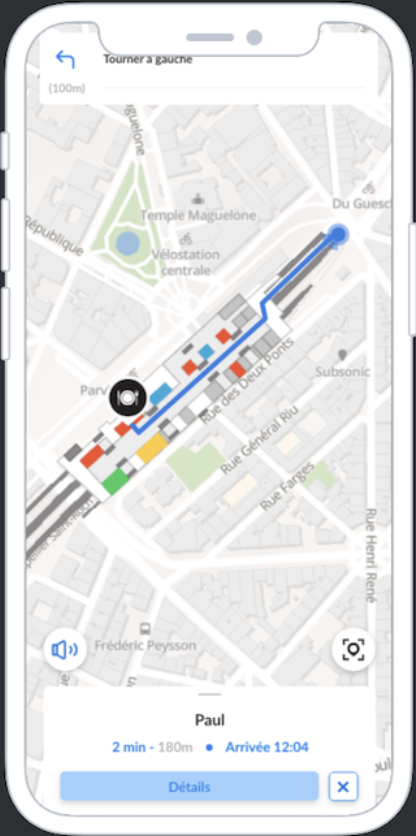
From the augmented reality view of the map, it is possible to launch navigation and use turn-by-turn guidance (as with the map view).
🤳 Activate navigation / turn-by-turn guidance in augmented reality
- Access the map from your phone
- Activate turn-by-turn guidance:
- If you activate AR view before launching navigation:
-
Raise the phone (at least 45°) or click on the AR view button (symbolized by a pinpoint between four angles) to trigger it
👉 This action depends on the AR configuration performed on Wemap Pro.
- Scan your environment to geolocate yourself
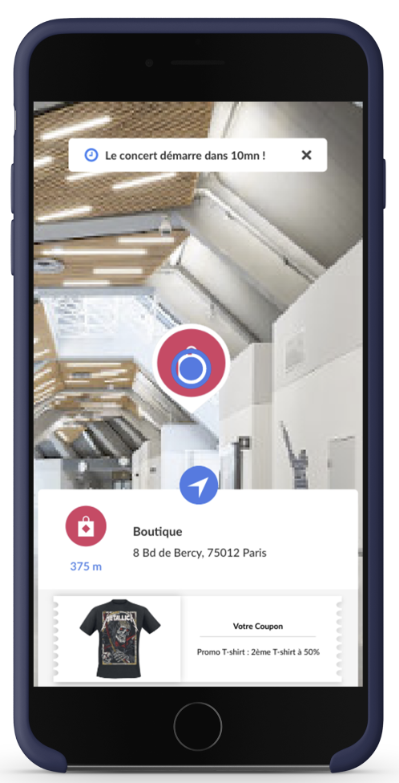
- Point the phone at the searched point
- Keep the blue dot in a fixed position for a few seconds on the point of your choice to open its detailed information
-
Click on the navigation button (symbolized by a directional arrow) to launch AR guidance
-
- If you activate navigation on the map view before activating AR view:
- Select the targeted point
- Click on "Go" symbolized by the arrow on a blue background
-
Click on the button for AR view to trigger it (it is symbolized by a pinpoint between four angles)
- Keep the blue dot in a fixed position for a few seconds on the point of your choice to open its detailed information
- Click on the navigation button (symbolized by a directional arrow) to launch AR guidance
- Let yourself be guided in AR using voice and visual instructions (blue arrows and indications)

📲 Understanding the phone screen for augmented reality navigation
