
Create a multi-route map that can be read without the routes overlapping
This article explains how to create a clear and easy-to-read multi-route map, whilst avoiding the overlapping of routes and itineraries.
E.g. : you want to highlight around ten routes on a single map, without overwhelming the user with a jumble of routes that are difficult to distinguish.
To achieve this, the solution is as follows :
- Create a dedicated map for each route, showing its detailed route.
- Display all these routes as POIs on an ‘overview’ map.
On this overview map, each POI is linked to a clickable button or link, which redirects the user to the detailed map of the corresponding route.
In summary :
- an overview map, showing all the routes as POIs;
- a dedicated map for each route, accessible from the POI details via a clickable button.
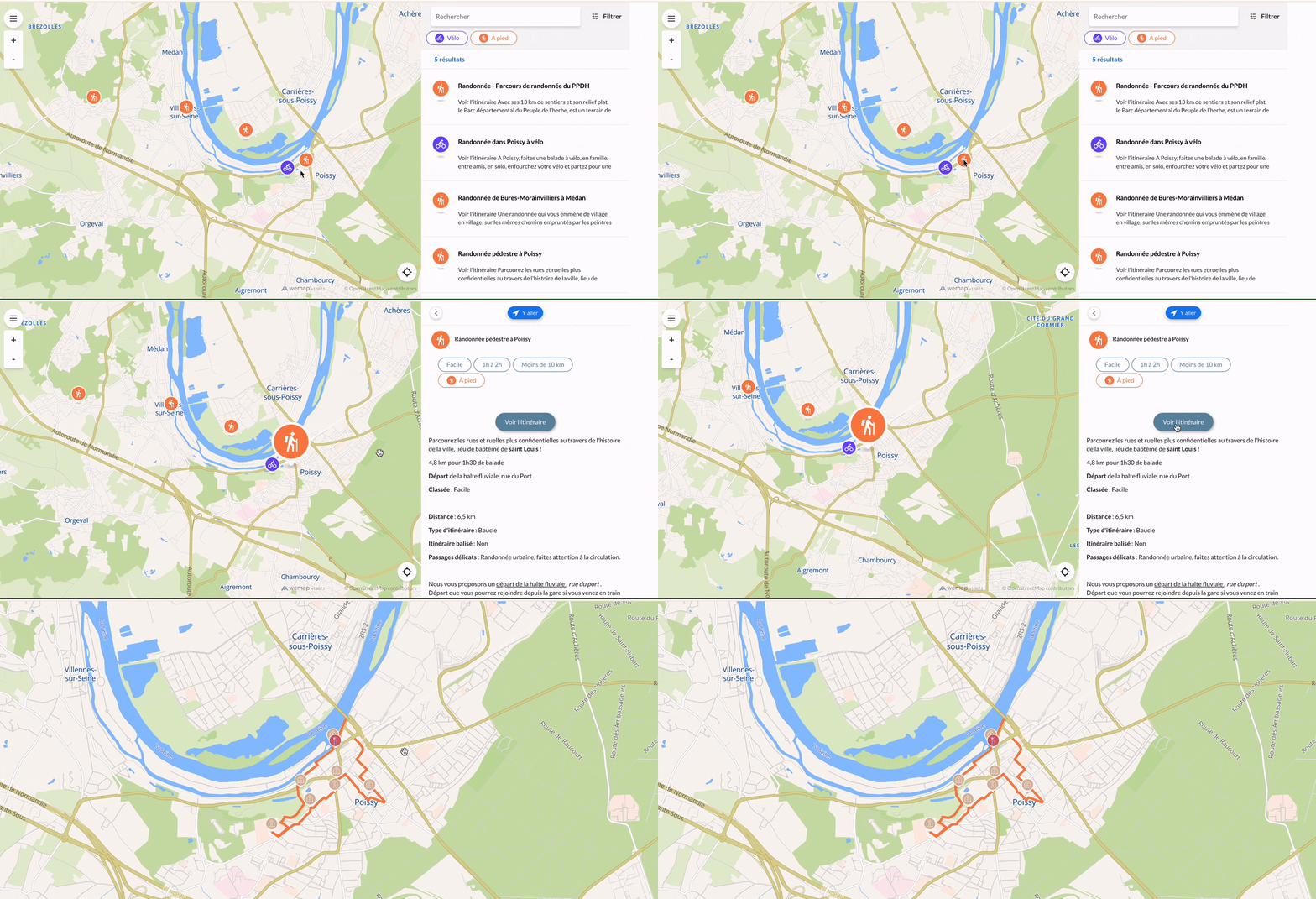
🗺️ Create a multi-route map with POIs
- Create your detailed route maps on Wemap Pro
👉 See ‘Create a route / track / itinerary and embed it in a map’ (section ‘Method 1: creating a route’)
- Create your master map
- Create a list containing all your routes as POIs, using the method of your choice
- In your source file, for each POI:
- Enter the name of your route
- Specify a latitude and longitude for each route : you can enter the coordinates of the route’s starting point
- Add any information you wish to display in the point’s details
- Add a column/property containing the URL of the detailed map for the relevant route (https://livemap.getwemap.com/dom?emmid=XXXXX...)
- In your source file, for each POI:
- Carry out the mapping on Wemap Pro
- Make sure to add the column/value containing the URL of the detailed map to the “Description” property in Wemap Pro
- Display this as a link or action button via the description customisation options at the bottom of the page
- Link the list to your main map
- Check that your map is working correctly :
- Go to your map
- Select a POI to view the detailed view of that point
- Click on the link or action button : you should be redirected to the relevant detailed map